Download and Install the PDF995 Driver
The pdf995 printer driver is provided to ProPay users under Paysoft LLC's group license and should be downloaded only from the menu option shown below:
Before attempting to download, or Install, the pdf995 printer be sure you have turned off temporarily any antivirus or Firewall related software, as these 3rd party software most likely will block the download and execution of most 3rd party software.
Download the PDF995 Driver
Start PAY2026 from your work station's desk top shortcut as shown below:
Next go to the following menu option
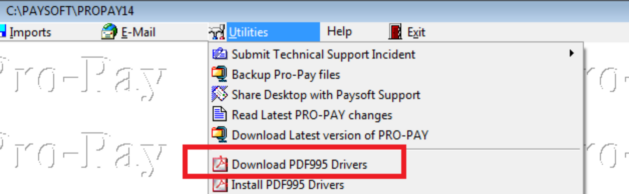
Download PDF995 Drivers - Download only once
The file PDF995.ZIP is automatically downloaded in \PAYSOFT\DRIVERS folder. Following the download, the program will extract the executable files to be saved in the same folder.
Install the PDF995 Driver ProPay From Menu Option
Start PAY2026 from your work station's desk top shortcut as shown below:
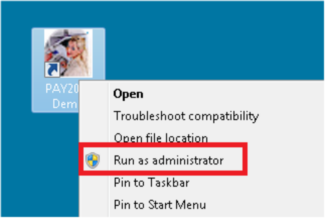
Next go to the following menu option
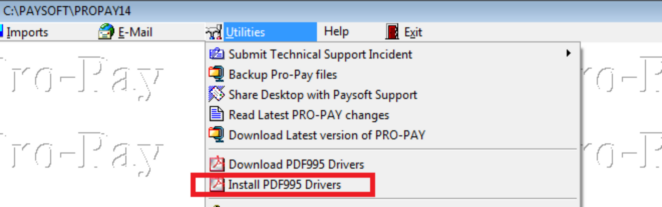
Run once from each work station
The pdf995 software is installed by default in the C:\pdf995 file folder of each pc.
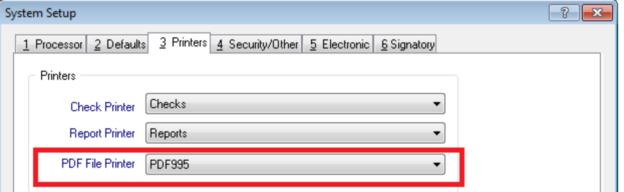
After, the driver is installed, (1-2 minutes) the pdf995 driver should be selected as the "PDF File Printer" in ProPay as shown below
Install the PDF995 Driver Manually (if Menu Option Fails to Install)
If the pdf995 driver is not successfully installed on your pc from the ProPay menu option, the next option is to install it manually.
If there was no interference from any antivirus or Firewall related software the downloaded files should appear as shown below:
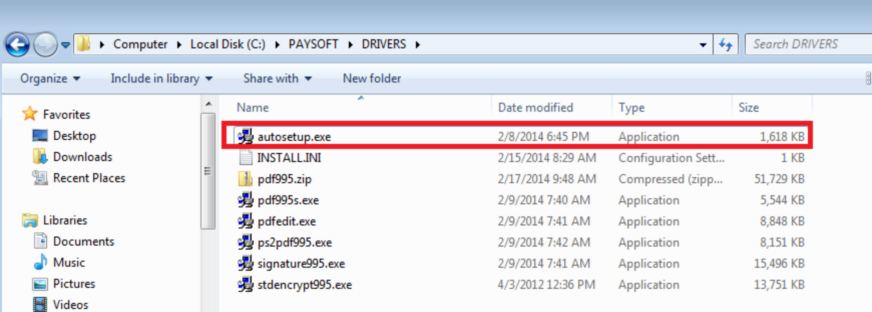
To install the pdf995 driver manually run the file autosetup.exe as Administrator as shown above:
If you don't have Administrator privileges you may try to open this file and run it as regular user.
The installation takes place in "quiet mode" and it lasts 1-2 minutes.
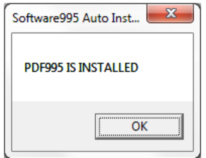
if it installs correctly you should see this message
Testing the PDF995 Driver
Open PAY2026.EXE go to Client Functions > Setup > System Setup > Printers and select pdf995 as your pdf printer
Exit PAY2026.EXE
Open PAY2026.EXE again go to UTILITIES > SHOW PC ENVIRONMENT and find this line:
Pdf995 Output Folder = C:\Users\username\Documents\PAYSOFT\PDF995\OUTPUT
You may copy paste the above line to your Windows Explorer to go to this folder.
From there, you may copy and paste the above OUTPUT folder to your desk top for easy access to your pdf995 printed documents
Open PAY2026.EXE again and print a simple report to PDF995. Check the above Pdf995 Output Folder to make sure the report is saved inside this folder.
Troubleshooting
For troubleshooting any problems related to pdf995 performance see the help topic:
Troubleshooting pdf995 Not working
or check this link:
http://www.pdf995.com/faq2.html
Please bear in mind that the distributed files are installed and designed for ProPay use, therefore if you have any technical issues contact first Paysoft LLC for Technical support.