Employee Direct Deposit Setup
> Looking for the complete guide? See Direct Deposit - Complete Guide for end-to-end instructions.
Overview
Direct deposit enables you to pay employees by electronically transferring wages directly into their bank accounts through the ACH (Automated Clearing House) system. This secure and efficient payment method eliminates the need for paper checks and ensures timely payment delivery.
Prerequisites
Before setting up direct deposits for employees, ensure you have:
- Signed authorization form from the employee
- Written agreement between you (the employer) and the client
- ACH agreement with the financial institution that processes ACH transactions
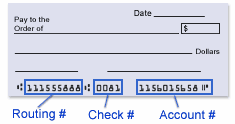
- Voided check from the employee's bank account
The voided check provides critical information needed to deposit funds into the employee's account. Your bank information is already established in ProPay from your payroll check setup.
Understanding the Voided Check
A voided check contains three key pieces of information at the bottom:
- Routing and Transit (R/T) number: A unique 9-digit number enclosed in special symbols that identifies the bank
- Account number: The employee's specific account number
- Check number: Not needed for direct deposit setup
Ensure the employee provides a check from an active account at their financial institution.
Setting Up Direct Deposit
Accessing the Direct Deposit Screen
- Go to Employees > Add or Change.
- Select the employee from the list.
- Click the Direct Deposit tab.
Required fields
Bank name
Enter the employee's bank name exactly as shown on the voided check.
9 Digit R/T #
Enter only the 9-digit Routing and Transit number from the bottom of the voided check. Do not include the special symbols that enclose this number.
Employee Account #
Enter the employee's account number from the voided check. Enter only numbers—no spaces, dashes, or special characters.
C/S
Enter the account type:
- C - Checking account
- S - Savings account
Allocation methods
You can allocate an employee's net pay using either percentages or fixed amounts.
% Percent
Enter the percentage of net pay to be deposited into this account.
- For a single account, enter 100
- For multiple accounts, enter percentages that total 100% or less
Amount
Enter a specific dollar amount to be deposited into this account.
The amount is deducted first, before any percentage calculations are applied to the remaining balance.
Splitting Deposits Across Multiple Accounts
 Note: ProPay allows you to split an employee's net pay into up to 4 different bank accounts.
How allocation works
Note: Amounts must be entered before percentages.
- Amounts are processed first, then percentages
- Account priority: Account 1 has highest priority, followed by accounts 2, 3, and 4
- If net pay is insufficient to satisfy all allocations, accounts are satisfied in priority order
Note: Bank account number 1 has priority over accounts 2, 3, and 4. Bank account number 2 has priority over accounts 3 and 4, etc. If the net pay is insufficient to satisfy the deposit requirements as set up, the different bank accounts will be satisfied based on priority.
Example: Multiple account setup
_CODE_BLOCK_0_
In this example:
- ProPay deposits $50 into Bank of America savings
- ProPay deposits $25 into Credit Union savings
- ProPay deposits 100% of the remaining net pay into 1st National Bank checking
Priority processing
If the employee's net pay is $200:
- Bank of America receives $50
- Credit Union receives $25
- 1st National Bank receives $125 (the remaining balance)
If the employee's net pay is only $60:
- Bank of America receives $50
- Credit Union receives $10 (all that remains)
- 1st National Bank receives $0 (insufficient funds)
Removing Direct Deposit
To discontinue direct deposit for an employee:
- Go to Employees > Add or Change > select the employee > Direct Deposit tab.
- Enter zero in the amount or percent fields, OR erase all fields completely.
- Exit to the previous screen.
- Click Save to save the changes.
The employee will receive a paper check on the next pay date.
Saving Changes
Important: Always exit to the previous screen and click Save to save any direct deposit changes. Changes are not saved automatically.
Troubleshooting
Total percentages exceed 100%
Ensure the total of all percentage fields does not exceed 100%. ProPay will alert you if percentages are invalid.
Account priority issues
Remember that amounts are always processed before percentages, regardless of which account number they're assigned to. List accounts in the order you want them funded.
Incorrect routing or account numbers
Double-check all numbers against the voided check. Routing numbers are always 9 digits. Account numbers vary in length by bank.
Insufficient net pay
If an employee's net pay doesn't cover all fixed-amount allocations, lower-priority accounts may receive reduced or zero deposits. Review the allocation setup to ensure it works with typical net pay amounts.
Related Topics
- Direct Deposits - System Setup
- Direct Deposits - Transmitting
- Direct Deposits - File Format
- Enter New Payroll