Client Tax Filing Specifications
Overview
Configure tax filing authorization and electronic filing options for your clients. This feature lets payroll providers manage tax filing permissions, electronic submission settings, and signatory information for federal and state tax returns.
Key Features
- Client authorization for tax return signing
- Electronic filing options for 941/940, state withholding, and SUI returns
- Electronic payment of tax balances
- Signatory and designee information management
- Tax return filing exclusion
Client Authorization for Tax Return Signing
How to Enable
- Go to Client Functions > Edit Client > Page 4 (Tax Filing Specifications).
- Check Client has authorized payroll Provider to sign tax returns.
- Ensure you have written authorization from your client
Important notes
- This box must be checked to include the client in batch filing of electronic tax returns
- When checked, the payroll processor's name appears as signatory on tax returns
- Written authorization is required before enabling this feature
Tax Return Filing Exclusion
To exclude a client from batch filing:
- Check Do Not File or Print Any Tax returns for this client
- The client will be excluded from batch filing of electronic returns or batch printing of paper returns
Electronic Tax Filing Options
Available options
- File 941/940 tax returns electronically - Include client in federal tax return batch filing
- File STWT returns on magnetic media (if available) - Submit state withholding returns electronically
- File SUI tax returns on magnetic media (if available) - Submit state unemployment returns electronically
How to set up
- Check the appropriate boxes for desired filing options
- Client will be included in batch filing for selected return types
Payment of Tax Balances
How to enable
- Check Pay any tax balances due electronically with filing
- Employer's account will be debited automatically for balance due on e-filed returns
Important notes
- Applies to 941/940, state withholding, and state unemployment returns
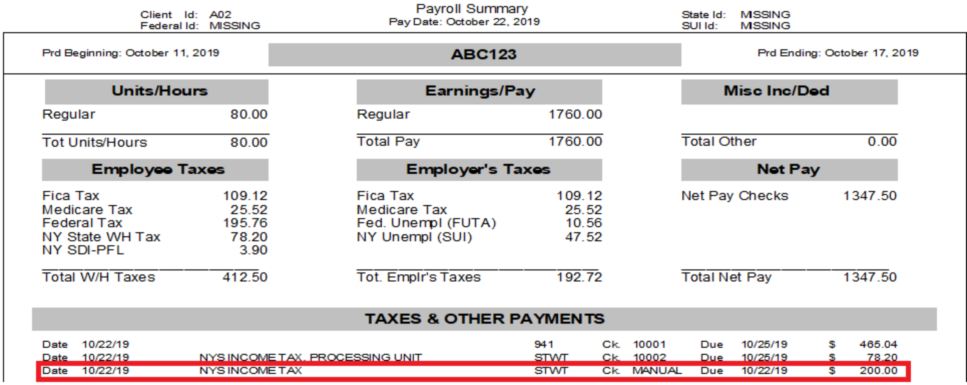
- Tax payments are not reflected on payroll summary reports automatically
- To include payments on payroll summary reports, manually enter them in the tax file
Signatory Information
Enter the following details for the authorized signatory:
- Signatory name
- Title
- SSN
- Phone
Adding signature to 941 forms
- Scan your signature to a .BMP file
- Name the file US941.BMP
- Save to the ProPay directory
Designee Information
Enter the following details for the designee:
- Designee name
- Phone
- PIN (self-assigned number for discussions with government agencies)
Troubleshooting
Unable to include client in batch filing
- Verify Client has authorized payroll Provider to sign tax returns is checked
- Ensure Do Not File or Print Any Tax returns for this client is unchecked
- Check that appropriate electronic tax filing options are selected
Tax payments not appearing on payroll summary reports
- Confirm payments were processed through electronic tax filing system
- Manually enter tax payments in the tax file to include them in payroll summary reports
Signature not appearing on 941 forms
- Verify signature file is named US941.BMP
- Ensure file is in the correct directory (consult ProPay documentation for specific location)
- Check that file is in .BMP format