Computing Paychecks
Overview
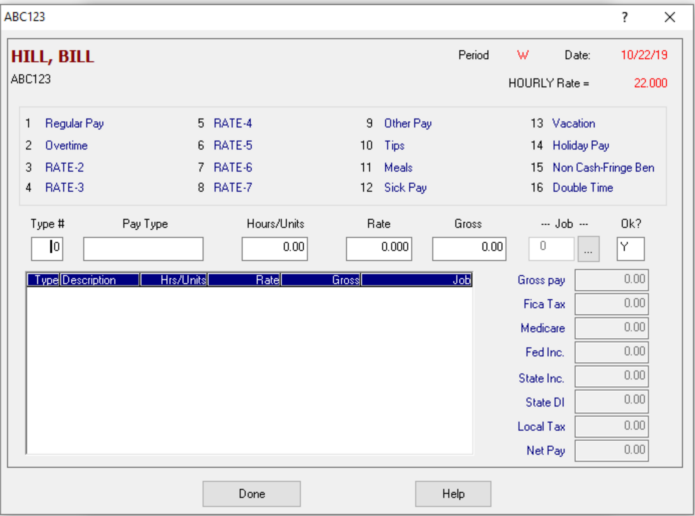
The Payroll Entry Screen allows you to enter and manage employee payroll data efficiently, including regular pay, hours worked, overtime, tips, meals, deductions, and withholding taxes.
Key Features
- Regular pay and hours entry
- Overtime hours tracking
- Tips and taxable meals
- Other pay types
- Automatic withholding tax calculations
- Automatic and manual deductions
- Action buttons (Accept, Redo, Override, Next, Exit)
Payroll Entry Fields
Regular pay
For salaried employees, regular pay and withholding are pre-calculated when you open their paycheck.
To accept the calculated amount:
- Review the pre-calculated regular pay and withholding
- Click Accept if no changes are needed
To change the salary amount:
- Enter a different salary amount in the Regular Pay field
- The system will recalculate withholding automatically
- Click Accept to save the paycheck
Regular hours
Enter the number of regular hours the employee worked during the pay period.
The system calculates regular pay by multiplying regular hours by the employee's hourly rate (set during employee setup).
Overtime hours
Enter any overtime hours worked during the pay period.
The system calculates overtime pay using the employee's overtime rate (typically 1.5x or 2x the regular rate, as configured in employee setup).
Tips
Enter any tips reported by the employee.
Note: This field only accepts data if the client is set up for tips. If you need to enter tips but the field is unavailable, verify tip setup in Employer Setup.
Meals
Enter any taxable meals provided by the employer to the employee free of charge.
Important: Not all employer-provided meals are taxable. Refer to IRS Publication 15 (Circular E) for guidance on meal taxability: https://www.irs.gov/pub/irs-pdf/p15.pdf
Other pay
Click Other Pay to enter payroll data not listed on the main payroll entry screen, such as:
- Additional pay rates (Rates 2-7)
- Bonuses
- Commissions
- Reimbursements
- Other compensation types
Withholding Taxes
Withholding taxes are automatically calculated whenever you enter or change payroll data.
The system calculates:
- Federal income tax withholding
- FICA (Social Security)
- Medicare
- State income tax withholding (if applicable)
- Local taxes (if applicable)
Calculations are based on employee tax setup and current tax tables.
Deductions
Automatic deductions
Deductions set up during employee setup are calculated and applied automatically to each paycheck.
Manual deductions
For occasional or one-time deductions:
- Click the appropriate deduction field
- Enter the deduction amount
- The system will subtract the deduction from the employee's net pay
Note: To enable occasional deductions, mark the "Check if used" box in Employer Setup > Screen 2.
Deduction configuration
- Deduction descriptions are defined in Employer Setup
- 18 deduction fields are available
- Each field can be defined as (D)eduction or (I)ncome during employer setup
Action Buttons
Accept
Click Accept to save and enter the paycheck into the system.
Important: This is the only button that saves the paycheck. If you don't click Accept, the paycheck will not be entered.
Redo
Click Redo to clear all entries and start over on the current paycheck.
Use this if you've made errors and want to begin again with the original calculated values.
Override
Click Override to manually change certain calculated fields such as federal withholding or specific deductions.
Warning: Be extremely careful not to override FICA or Medicare taxes. Overriding these taxes may result in under-withholding, and the employer may be held liable for the difference.
Next
Click Next to move to the next employee without accepting the current paycheck.
Use this to skip an employee when you need to gather additional information before processing their paycheck.
Exit
Click Exit to close the Payroll Entry Screen.
Important: Exiting without clicking Accept will not save the current paycheck.
Troubleshooting
Unable to enter tips
Cause: The client account is not set up for tips.
Solution: Contact your system administrator or Paysoft support to enable tip tracking for your client account.
Deductions not appearing
Possible causes and solutions:
- Deduction not set up for employee: Verify the deduction is configured in Employee Setup > Deductions
- Occasional deduction not enabled: Check that the "Check if used" box is marked in Employer Setup > Screen 2
- Deduction not active: Ensure the deduction has a start date on or before the current payroll date
Paycheck not saving
Cause: The Accept button was not clicked.
Solution: Always click Accept to save and enter the paycheck into the system. Using Next or Exit without clicking Accept will discard the paycheck data.