Local Tax Tables - Add
If you are in a jurisdiction or locality that requires employers to withhold local or city income taxes, first look up the existing tax tables provided with ProPay.
Accessing Local Tax Tables
- Go to Client Functions > Setup > Local Tax Tables Setup.
The Local Tax Tables browse screen displays all currently defined localities.
Finding an Existing Locality
- Browse through the list to find your locality.
- Double-click an entry to open the Edit screen and review its settings.
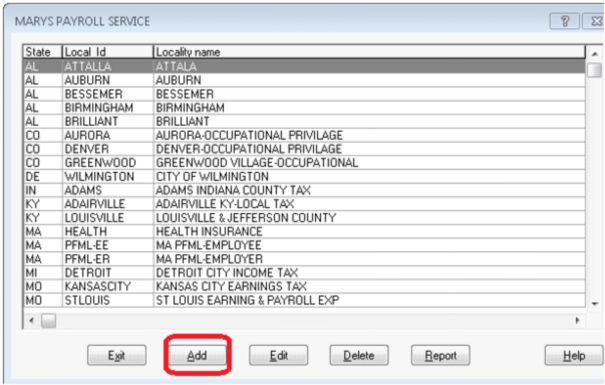
ProPay ships with many common localities pre-configured. Check the list before adding a new entry.
Adding a New Local Tax Table
If your locality is not listed, follow these steps:
- Click Add on the Local Tax Tables browse screen.
- Enter the required fields (see below).
- Review an existing locality entry as a model for your new one.
- Click Save to add the new locality.
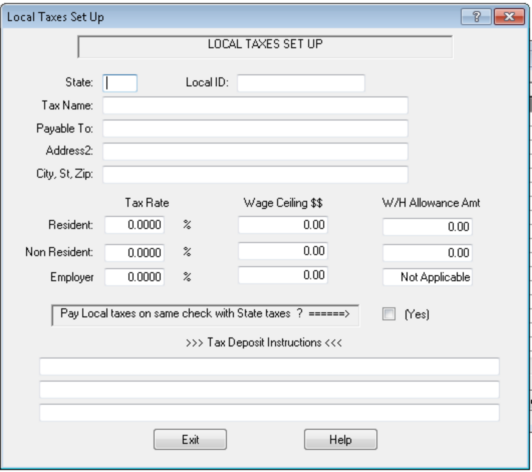
Required Fields
| Field | Description |
|---|---|
| Locality Name | The name of the city, county, or jurisdiction (e.g., "Philadelphia", "Denver") |
| State | The two-letter state code where this locality applies |
| Tax Rate | The local tax withholding rate as a percentage |
| Exemption Amount | Per-exemption dollar amount to reduce taxable wages (if applicable) |
| Resident/Non-Resident | Whether the rate applies to residents, non-residents, or both |
Tips for Adding Localities
- Use an existing locality in the same state as a template for the correct field layout.
- Contact your local tax authority or visit their website for the current tax rate and exemption amounts.
- If your locality uses a flat dollar amount (head tax) rather than a percentage, enter the flat amount in the appropriate field.
How Local Taxes Are Calculated
ProPay supports up to 5 local tax jurisdictions per company. During paycheck processing, the system:
- Reads the company's assigned localities (up to 5).
- Matches each employee's tax state to the appropriate locality.
- Looks up the locality in the local tax tables (PRLOCAL).
- Calculates withholding based on the locality type:
- Percentage-based -- Applies the tax rate to taxable wages after exemptions.
- Flat/head tax -- Withholds a fixed dollar amount per pay period or per month (e.g., Denver's Occupational Privilege Tax).
- Special taxes -- Handles state-specific taxes such as NYC/Yonkers taxes, Maryland county taxes, and Paid Family Leave taxes.
- Go to Client Functions > Edit Client.
- Navigate to the Tax Setup tab.
- Select the locality from the local tax dropdown fields (Local 1 through Local 5).
- Save the company record.
Common Local Tax Types
| State | Locality Examples | Tax Type |
|---|---|---|
| CO | Denver, Aurora, Greenwood Village | Monthly head tax |
| DE | Wilmington | Percentage of gross |
| IN | Various counties | Percentage with exemptions |
| KY | Various cities/counties | Percentage with exemptions |
| MD | All counties | Percentage (piggyback tax on state withholding) |
| NY | New York City, Yonkers | Progressive brackets |
| OH | Various cities | Percentage of gross |
| PA | Various municipalities | Percentage (earned income tax) |
Assigning a Local Tax to a Company
After adding a local tax table entry, you must assign it to the company:
Employees in that company will then have the local tax calculated automatically during paycheck processing.
Important Notes
Because there are hundreds of localities and tax jurisdictions across the country, it is not possible to maintain a complete and current list. ProPay provides the framework where you can easily add the tax rates and necessary information to accommodate most situations.
If your situation is unique and does not fit the framework, contact Paysoft for assistance at [email protected].