Employer Setup
Overview
Go to Employer > Employer Setup to open the employer configuration screens.
The Employer Setup screens configure essential employer information for payroll processing, including tax IDs, banking details, deposit frequencies, employee benefits, and multi-state operations. This setup appears automatically when adding a new client and can be accessed later through Employer > Employer Setup.
There are five setup screens accessible via folder tabs at the top of the screen.
Screen 1: Basic Information and Tax Setup
Go to Employer > Employer Setup > Screen 1 (Basic Information and Tax Setup).
Taxpayer information
Taxpayer Name
Enter the owner's name (for sole proprietors), the general partner's name (for partnerships), or the corporation name (for incorporated businesses).
DBA
Enter the company trade name, address, city, state, and postal code.
Tax identification numbers
Federal, State, Local ID Numbers
Enter the employer's identification numbers assigned by federal, state, and local agencies. Request a copy of all tax IDs from your client. Do not accept tax ID numbers verbally or over the phone. Applying tax payments to incorrect tax IDs can be very costly.
SUI Rate
Enter the State Unemployment Insurance rate. Each employer receives a specific SUI rate from the state each year.
Training Rate
Some states assign a training rate to certain employers. This is also called workforce, reemployment rate, or other names depending on the state. These funds are collected from the employer for retraining unemployed or laid-off workers.
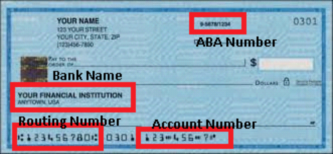
Banking information
9-Digit Bank No. (Routing Number)
Every bank or financial institution in the United States is identified by this unique 9-digit routing number. Request a voided check from the account the client uses for payroll. This 9-digit number can be found at the bottom of the check and normally precedes the customer's account number.
Client Account Number
The bank account number is obtained from the bottom of a client's voided check. Be sure to enter any special symbols between numbers. See the special symbols displayed on your screen and use the corresponding key from the keyboard.
WARNING: Do not enter the numbers representing the check number. Part of the number at the bottom of the check represents the check number, which is usually printed at the upper right corner of the check. Do not enter these digits as part of the account number. ProPay assigns check numbers as checks are being printed.
Bank Name, Address
Enter the bank name and address as shown on the check.
ABA Numbers
These two numbers are usually found at the upper right corner on the check and appear as a fraction. Example: 16-5/1222
Government assigned tax deposit frequencies
Each year, the IRS and most state and local government agencies assign a tax deposit frequency status to each employer. This determines how often each employer must pay their payroll taxes. It is very important to enter the correct status to avoid penalties. Request a copy of the letter from the government agency to avoid future misunderstandings.
Deposit frequencies:
- (S) - Semiweekly tax deposits
- (M) - Monthly tax deposits
- (H) - Half-monthly or semimonthly tax deposits (state withholding only)
- (Q) - Quarterly tax deposits
- (4) - Quarter-monthly tax deposits (state withholding only)
- (8) - Eighth monthly tax deposits (state withholding only)
- (1-5) - 1 or 5 day depositors (state withholding only)
- (N) - Not applicable
Note: If the Federal 941 liability is $100,000.00 or more on any pay date, the program will automatically generate a tax payment due the following banking day.
Employer preferred tax deposit frequencies
The employer preferred tax deposit frequencies are optional. In some cases, the employer prefers to pay employment taxes more often than required by law.
Example: A small employer with less than $500.00 in 941 liability per quarter is required to pay 941 taxes at the end of each quarter. In this case, select (Q) Quarterly Tax Deposits under Government Assigned. However, if the employer instructs you to generate tax payments monthly, select (M) Monthly Tax Deposits under Employer Preferred.
Note: Employer frequency cannot be less frequent than government frequency to avoid tax penalties.
Screen 2: Company Preferences and PDF Setup
Go to Employer > Employer Setup > Screen 2 (Company Preferences and PDF Setup).
Company preferences
Print Corporation Name on Checks
If this box is checked, the corporate name is printed on checks, as well as the DBA. For sole proprietors, this box is usually not checked.
Will Your Payroll Include Tips
Check this box if applicable. See Tips setup for details.
Do You Provide Taxable Meals
Check this box if meals are provided free of charge to the employee and are subject to taxes. See IRS Circular E Employer's Tax Guide for qualifying questions.
Are Departments Used
Check this box and the program requires you to set up company department numbers with names and assign a department number to each employee. The program prints payroll reports with departmental breakdowns, which is useful for Worker's Compensation reports.
Job Cost Report Needed
Check this box to assign job numbers to each payroll entry, enabling the system to provide job cost reports.
Print Vacation/Sick Accrual on Pay Stubs
Check this box if the employer wants to show accrued vacation and sick hours on employee pay stubs.
Days Between Period Ending and Pay Date (including the Paydate)
This value is used by the software to calculate the default period beginning date and period ending date each pay period when you enter the pay date.
Example: For a weekly payroll where the pay period is Monday-Sunday and the pay date is the following Friday, the number of days between the period ending (Sunday) and the pay date (Friday) is 5 days.
Password For This Client (If used)
By entering a password here, you can limit access to this client's payroll files only to those persons who have access to this password.
Form 944 filing
Check this box if you are filing Form 944 Employer's Annual Federal Tax Return. You must file annual Form 944 instead of Form 941 only if the IRS notified you in writing. Next, go to Employer Setup Screen 1 and select (A) Annual Tax Deposit Frequency for 941/944 taxes.
State and localities
State
Choose the home state for this employer. If the employer has operations in multiple states, go to Employer Setup Screen 5 to add more states.
Localities 1-5
If your client is subject to local taxes, select the name of the localities here. Up to 5 localities per employer are supported. Localities are set up in Local Tax Tables Setup.
Employer message on pay stub
There are two optional message lines here. Any message may be printed on the employee pay stub for this specific employer only.
PDF file setup
The PDF file option works only if you have installed the PDF995 drivers. If not, go to Utilities, download the PDF995 drivers, or install from www.pdf995.com.
Print Checks in PDF File
Check this box to print checks automatically to a PDF file.
Print Standard Reports in PDF File
Check this box to print standard reports automatically to a PDF file.
Email Checks to Client (PDF File)
Check this box to email checks automatically to the client.
Email Reports to Client (PDF File)
Check this box to email standard reports automatically to the client.
Password for PDF File and Excel File
Enter a password to encrypt the PDF and/or Excel reports that are emailed to the client. The encryption protects confidential information in case the email ends up in the wrong hands. The program default password is the client file ID (A01, A02, A03, etc.), but it may be changed at any time.
Note: The PDF file is encrypted during file creation. The Excel file is encrypted during the email process. For emailing options to be enabled, you must have entered an email address for this client in the Edit Client screen.
Magnetic media filing
Enter any PIN number that is required for state or federal magnetic media filing. Not all states require a PIN number.
Screen 3: Tax Exemptions and Benefit Accruals
Go to Employer > Employer Setup > Screen 3 (Tax Exemptions and Benefit Accruals).
State Disability Insurance (SDI)
Check If Employer Is Exempt From SDI
By checking this box, all employees are automatically exempt from State Disability Insurance (SDI) taxes. This only applies to states that are automatically subject to SDI taxes.
Note: If the employees are subject to the SDI tax but the employer is exempt, enter a negative SDI contribution rate.
Employer's SDI Contribution Rate
Enter the employer's SDI contribution rate. Generally, the employee's SDI rate is built into the tax tables. However, if the employer wishes to pay the employee's portion, that rate may be entered here as well.
Check Here To Hold SDI Payments
If you do not want ProPay to print out a check payable to the state agency for SDI taxes due, check this box. This may be used in cases where the employer is self-insured or has made other arrangements to provide SDI coverage for employees.
Check If Employer Pays Employee's SDI Tax
By checking this box, ProPay does not deduct SDI taxes from employees. However, the employee's portion is accrued as a liability to be paid by the employer.
SDI Tax Deposit Frequency
This indicates how often ProPay generates a check to pay the SDI taxes due. Valid entries are (M) Monthly and (Q) Quarterly.
Unemployment tax exemptions
Check If Exempt From SUI and FUTA Tax
Occasionally, certain employers may be exempt from either state or federal unemployment taxes or both. In such cases, check the appropriate boxes. All employees under this employer are automatically exempt from the selected unemployment tax(es).
Tips against minimum wage
Check The Box to Apply Tips Against Minimum Wage
If this box is checked, ProPay warns you every time a tipped employee's gross wages fall below the federal minimum wage. It also asks if you want to increase that employee's pay rate (for that particular check only) to meet federal minimum wage requirements.
Employer type
Check the appropriate box for the employer type:
943 Employer
Check this box if you are filing Form 943 Employer's Annual Return for Agricultural Employees. Check the IRS website (www.irs.gov) to see if your client qualifies.
Seasonal Employer
Check this box if your client only employs workers for certain months of the year.
944 Employer
Check this box if you are subject to filing Employer's Annual 944 Return. Check the IRS website (www.irs.gov) if your client qualifies. Your client may have received a letter from the IRS instructing them to file Form 944.
Household Employer
Check this box if your client is a household employer. Check the IRS website (www.irs.gov) to see if your client qualifies.
941 Employer
If none of the above boxes are checked, the employer is deemed to be a 941 Employer by default.
Paid Time Off (PTO)
Use PTO
Check this box if the employer uses Paid Time Off (PTO) instead of individual accruals for vacation and sick pay. PTO can be set up with one of three accrual methods: hours earned for hours worked, per paycheck, or annual hours available.
Default vacation/PTO/sick accruals
When setting up a new employer, it is recommended to set up the company default values for vacation/PTO and sick accruals. If the employer is using PTO instead of sick and vacation accruals, only the default value for PTO needs to be set up in the vacation default field. The number of days to start accrual from hiring is set up when configuring the accrual defaults. Refer to your client's policy or state requirements for this information.
Print Vac/PTO/Sick Accrual on Pay Stubs
Check this box to print the employee's accrual information on their check stubs when each payroll is processed.
Do Not Accrue Vac/PTO/Sick on Vac/PTO/SICK Time Paid
Check this box if your client does not want employees to accrue additional hours based on the vacation/PTO/sick pay.
Recalculate vacation/PTO/sick accrual hours
Click the Recalculate button to recalculate all vacation/PTO and sick hours accrued. This may be run whenever there are changes in the accrual rates and there is a need to recalculate from the beginning of the year until the last payroll.
Reset defaults for vacation/PTO and sick
Click Reset Vac/PTO Defaults to reset the default values for these accruals for all employees.
Click Reset SICK Defaults to reset the default value for the sick accrual for all employees.
Screen 4: Direct Deposit Setup
Go to Employer > Employer Setup > Screen 4 (Direct Deposit Setup).
Employee direct deposits
Employee Direct Deposits
Check this box if this employer wishes to pay one or more employees via direct deposits. Any employees set up for direct deposits will automatically be paid via direct deposits. If this box is unchecked, all employees (including those set up for direct deposits) will be issued regular checks.
Days In Advance To Draft Employer's Account
This entry is very important if the employer provides direct deposit to its employees. If set up correctly, it allows you to draft the employer's account enough days in advance to ensure funds availability on pay date. Check with your financial institution/ACH processor that provides the direct deposit services to determine how much time to allow here.
Select a direct deposit method
There are 3 methods used in ProPay to process direct deposits:
Method 1: Deposit Funds into One Common ACH Processor's Bank Account
This method is defined in Direct Deposits System Setup. This is the easiest method to use. You set it up once and all transactions get processed from one bank account. However, there is one disadvantage: all funds are intermingled into one bank account for all employers, making it difficult to protect from employer NSFs.
Method 2: Deposit Funds into Separate Bank Account per Employer
This method assumes the payroll processor has opened one bank account per employer with the same bank. The employer may or may not have access to this bank account.
This method requires extra setup. You need to create a separate bank account per employer with the same bank and enter each employer's routing number and account number in this screen. Some banks allow you to open multiple accounts under your name, which you can then assign to each employer for NSF protection.
How it works:
- If there is an NSF from any employer, only that employer's bank account is affected
- Two to three days later when employee credits are processed, only that employer's employees are impacted
- Other employers' payroll remains unaffected
Method 3: Single Client Direct Deposit File
This method allows you to upload your client's direct deposit file to their bank website, email the ACH file to their bank, or send it to your client so they can upload the file themselves.
To use this method:
- Check the box Create a Single Direct Deposit File for Employer's Bank.
- Select how you are submitting the file from the drop-down menu:
- 1 - Email file to Client
- 2 - Email file to Bank
- 3 - Upload file to Bank
- 0 - Do Not Send File
- If uploading to the bank, enter the bank's URL, user name, and password.
- If emailing the file, leave the bank URL fields blank and enter the email address for either the bank or your client.
- If the bank requires an employer debit in the ACH file, check the appropriate box.
- California - GovOne
- New Jersey - Axway
- (S) - Semiweekly tax deposits
- (M) - Monthly tax deposits
- (Q) - Quarterly tax deposits
- (4) - Quarter-monthly tax deposits
- (8) - Eighth monthly tax deposits
- (3-5) - 3 or 5 day depositors (example: New York State)
- (N) - Not applicable
- Add Client
- Edit Client Information
- Tax Filing Specifications
- Direct Deposit Setup
- Multi-state Withholding
Note: You may select any direct deposit method for each client. Method 1 files are exported from Direct Deposits > Transmit All Employers. Method 2 and Method 3 files are exported from Direct Deposits > Transmit Single Employer.
Federal Electronic Deposits - EFTPS ACH Debit Method
EFTPS Tax Payments
Check this box if the employer submits tax payments using the EFTPS ACH DEBIT method.
Federal PIN
Enter the federal PIN assigned to each employer registered for EFTPS tax deposits. The IRS assigns this PIN when the employer enrolls in the Electronic Federal Tax Payment System.
State Electronic Deposits - ACH Debit Method
State Electronic Tax Payments
Check this box if you provide state electronic tax deposits for this employer.
Some states use third-party processing services for ACH debit tax payments. Examples include:
Many states now process payroll tax payments through their own websites and accept ACH debit submissions directly.
State PIN
Enter the state PIN (if applicable) assigned to employers who participate in state electronic tax payments.
Tax Impounding - ACH Credit Method
Tax impounding allows you to draft funds from your client's account and hold them in a separate checking account until taxes are due. This checking account is set up in System Setup > Tax Impounds Setup.
Federal ACH Credit Payments
Check this box to impound the employer's federal payroll taxes into a separate checking account.
Note: When this box is checked, it also enables the automatic billing feature. The employer's account is automatically debited for billing fees and the payroll processor's account is credited each pay date.
State ACH Credit Payments
Check this box to impound the employer's state withholding and unemployment taxes into a separate checking account.
Note: If your state accepts electronic tax payments, ProPay sends these payments electronically. Otherwise, taxes are still impounded and the payroll processor can print individual checks for each employer to pay these taxes.
State PIN
Enter the state PIN (if applicable) assigned to employers who participate in state electronic tax payments using the ACH CREDIT method.
Days In Advance To Draft Employer's Account
Enter the number of days before the pay date to draft the employer's account for tax impounding. Enter zero if you do not want to draft the account in advance.
Screen 5: Multi-state Setup
Go to Employer > Employer Setup > Screen 5 (Multi-state Setup).
Multi-state operations
If Employer Operates in More Than One State Check This Box
When the box is checked, the entire screen is enabled and you may add up to four additional states, not including the home state.
For each new state added, the following information is required:
State withholding tax and unemployment ID numbers
Enter the employer's identification numbers assigned by state and local agencies. Request a copy of all tax IDs from your client. Do not accept tax ID numbers verbally or over the phone. Applying tax payments to incorrect tax IDs can be very costly.
STWT and UI tax deposit frequencies
Each year, most state agencies assign a tax deposit frequency status to each employer. This determines how often each employer must pay their payroll taxes. It is very important to enter the correct status to avoid penalties. Request a copy of the letter from the government agency to avoid future misunderstandings.
Deposit frequencies:
Employer SUI rate
Enter the State Unemployment Insurance rate. Each employer receives a specific SUI rate from the state each year.
Training rate
Some states assign a training rate to certain employers. This is also called workforce, reemployment rate, or other names depending on the state. These funds are collected from the employer for retraining unemployed or laid-off workers.
Employer's SDI Tax
For each additional state, enter the following SDI information if applicable:
Check If Employer Pays Employee's SDI Tax
Do not check this box unless you know for sure that the employer pays the SDI tax. In most states this is unlikely because the SDI tax is usually paid by the employee. The SDI rate is already programmed in ProPay for states that require it.
However, there are situations where the employer pays part or all of the SDI tax. Some employers elect to pay the full SDI tax even when not required. Only check this box if you are certain.
Check If Employer Is Exempt From SDI
Check this box if all employees of this employer are exempt from State Disability Insurance taxes. This only applies to states that have SDI taxes. If your state does not have SDI taxes, this checkbox has no effect.
Note: If employees are subject to the SDI tax but the employer is exempt, enter a negative employer SDI contribution rate.
Employer SDI Contribution Rate
Enter the employer's SDI contribution rate. Generally, the employee's SDI rate is built into the tax tables. However, if the employer wishes to pay the employee's portion, enter that rate here as well.
Tax Payment Method - State ACH Credit
State ACH Credit Payments
Check this box to impound the employer's state withholding and unemployment taxes into a separate checking account. This checking account is set up in System Setup > Tax Impounds Setup.
Note: If your state accepts electronic tax payments, ProPay sends these payments electronically. Otherwise, taxes are still impounded and the payroll processor can print individual checks for each employer to pay these taxes.
PIN
Enter the state PIN (if applicable) assigned to employers who participate in state electronic tax payments using the ACH CREDIT method.
Days In Advance To Draft Employer's Account
Enter the number of days before the pay date to draft the employer's account. Enter zero if you do not want to draft the account in advance.
Business Closure
Date Business Closed or Stopped Paying Wages
Check this box and enter the date if your client closed their business or stopped paying wages in a particular state. This information appears in magnetic media files and on paper forms for that state's tax filings.