E-file W-2s
Effective for 2017 or later years
Filing W-2 information electronically saves time and money. In many cases, electronic filing is mandatory for employers who exceed a certain number of employees. ProPay creates a file based on the EFW2 format (formerly called MMREF-1) specified by the Social Security Administration (SSA).
Note: SSA renamed the "Magnetic Media" format to "EFW2" (Electronic Filing of W-2s). ProPay's menu still uses the "Magnetic Media" label, but the file format meets the current EFW2 specification.
Overview
ProPay's electronic W-2 filing feature allows you to:
- Create W-2 files compatible with SSA's MMREF-1 format
- File for one or multiple clients in a single submission
- Test files using SSA's AccuWage validation software
- Submit directly to SSA through their Business Services Online portal
Before You Begin
Register with the SSA
Before submitting W-2 wage information electronically, you must register with the SSA to receive a PIN and password.
- Visit the SSA Business Services Online page: https://www.ssa.gov/bso/bsowelcome.htm
- Follow the registration process to obtain your credentials
AccuWage Online Validation
AccuWage Online is SSA's free web-based tool for verifying and validating your wage reporting files.
- Access at: https://www.ssa.gov/employer/accuwage/
- Note: SSA discontinued the desktop version. AccuWage Online is now the only supported option.
Creating W-2 Files
- From the Select Client screen, click Client Functions.
- Click Electronic Processing.
- Select W-2 Magnetic Filing.
- On the W-2 client selection screen, select one or more clients.
- ProPay will create a file containing all necessary W-2 wage information.
The file will be saved as W2??????.TXT in your C:\PAYSOFT\PROPAY26 folder.
Verifying the File with AccuWage
You must test the file created by ProPay using AccuWage software before submitting it to SSA. This software detects most problems with the file prior to submission.
Using AccuWage Online
- Log in to the SSA Business Services Online page: https://www.ssa.gov/bso/bsowelcome.htm
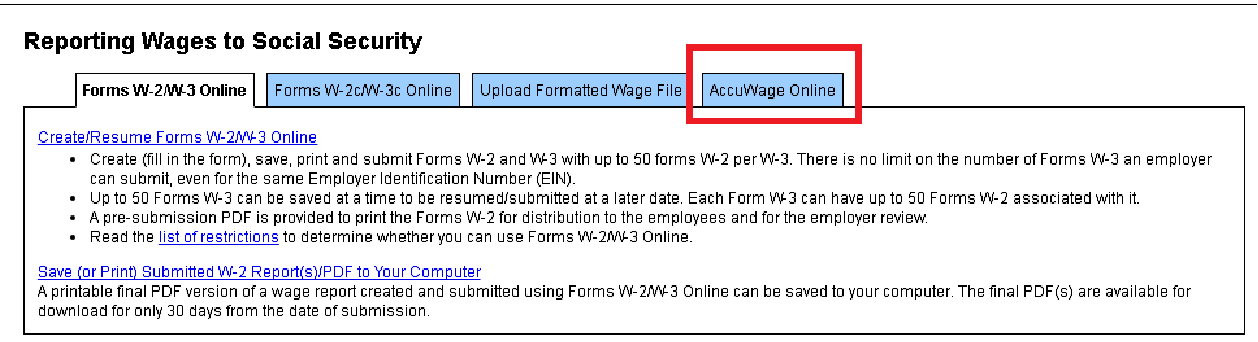
- Click the AccuWage Online tab.
- Select the W-2 type and click Start Testing.
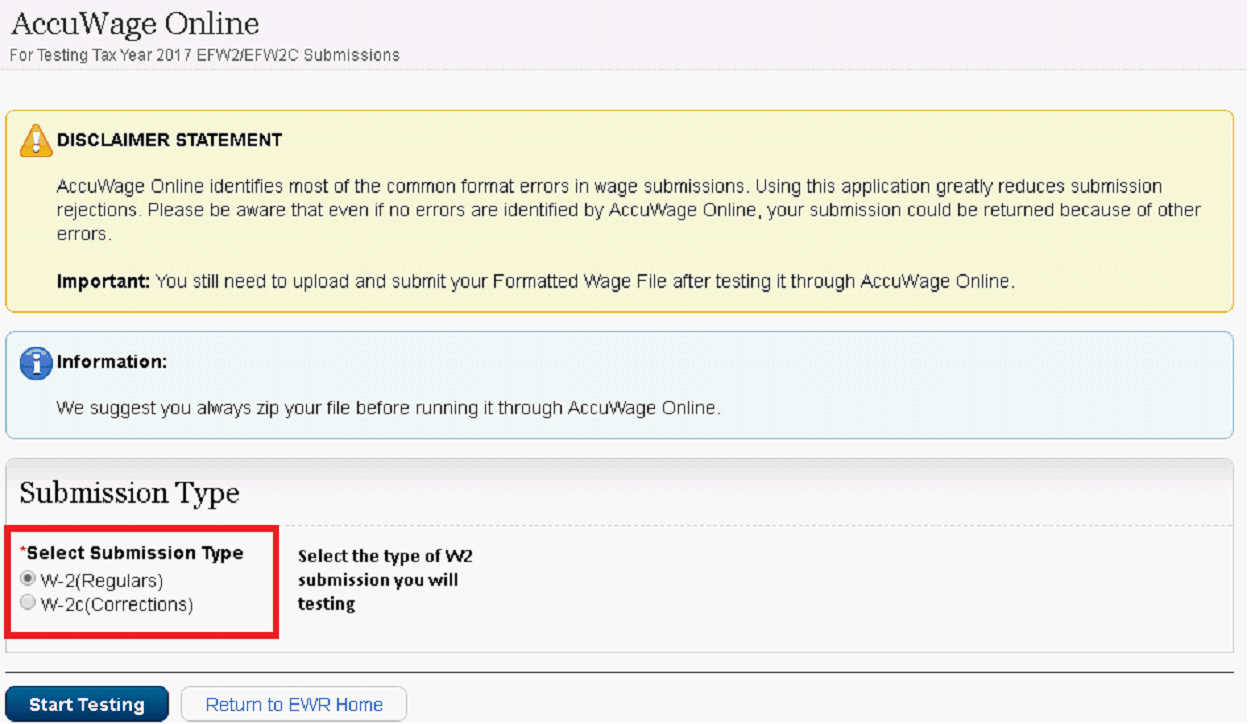
- Browse to select the file you want to test.

- Upload the file for testing.
- Review the error report carefully.
- If errors are found, make necessary corrections in ProPay, create a new file, and retest.
Repeat until the file passes all validation checks.
Submitting the W-2 File to SSA
When to File
The due date for filing W-2 information is January 31st.
Recommended: Wait at least 2-3 weeks after year-end before filing. Many employers request changes to the 4th quarter 941 due to bonuses or other adjustments not previously reported.
Submit Your File
- Go to: https://www.ssa.gov/bso/bsowelcome.htm
- Log in with your User ID and password.
- Click the Upload Formatted Wage File tab.
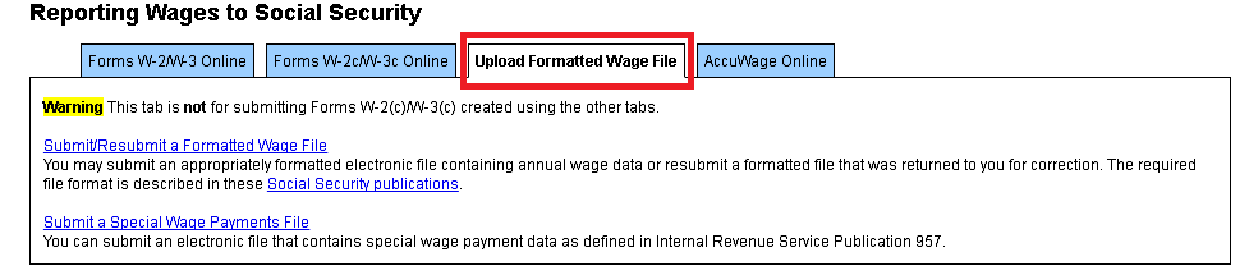
- Click Submit/Resubmit a Formatted Wage File.
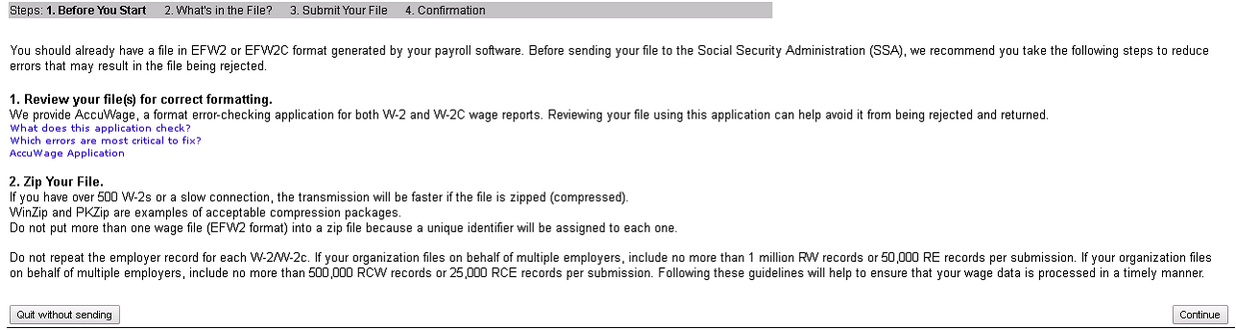
- Click Continue.

- Ensure New W-2s/W-3 is selected, then click Continue.
- Click Browse and locate the W2??????.TXT file in your C:\PAYSOFT\PROPAY26 folder.
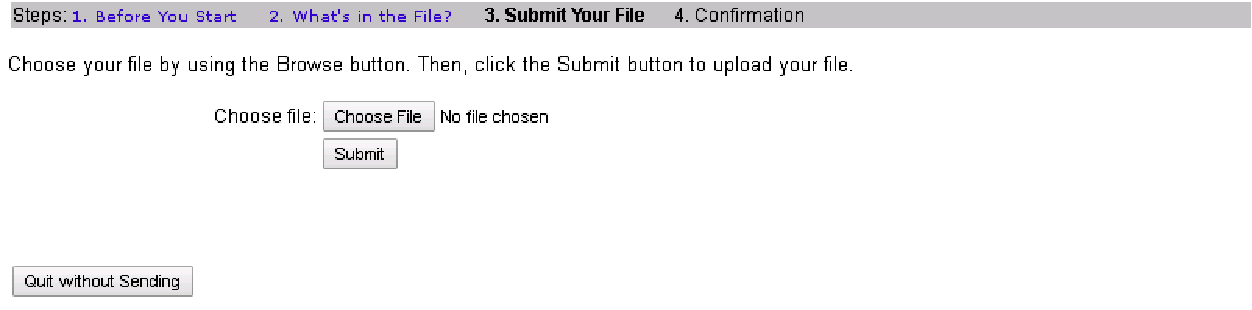
- Click Submit.
- Print the confirmation receipt for your records.
State Filing
The W-2 file created for SSA also contains the "RS" record (state record), which includes:
- Employee's wages subject to state withholding
- State tax withheld for the year
- Employer's state ID numbers
- Other state-specific information
Note: Although the RS record is ignored by SSA, it is used by many states. A majority of states now have an agreement with the federal government to exchange information, so in many cases you only need to file once.
Check with your own state for specific requirements.
Troubleshooting
File Rejected by AccuWage
- Review the error report carefully
- Make necessary corrections in ProPay
- Generate a new file and retest
Unable to Log in to SSA Website
- Ensure you have completed the registration process
- Double-check your User ID and password
- Use the Forgot Password option if necessary
File Upload Fails
- Verify your internet connection
- Ensure the file is in the correct format (W2??????.TXT)
- Try uploading during off-peak hours
Additional Resources
- SSA Employer Resources: https://www.ssa.gov/employer/
- SSA Business Services Online: https://www.ssa.gov/bso/bsowelcome.htm
- Paysoft Website: https://www.paysoft.com