Edit Client Information
Overview
The Edit Client function allows you to manage essential client information in ProPay, including company details, banking information for electronic billing, client activity status, and payroll frequency settings.
Company Information
Fill in all required fields with the appropriate information:
- Company Name
- Address
- Phone
- Fax
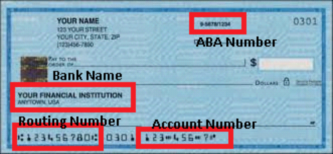
Banking Information
Enter banking details for electronic billing purposes. If you do not wish to bill your client electronically, leave these fields blank.
Bank Name
Enter the client's bank name. This is used for electronic billing purposes only.
Bank Routing No.
Enter the 9-digit bank routing number. This number can be found at the bottom of a check.
Bank Account No.
Enter the bank account number (up to 17 digits). This number can be found at the bottom of a check.
Client Status
Active
Set this field to control whether the client appears on your weekly schedule:
- Y (Yes): Client is active and appears on the weekly schedule
- N (No): Client is inactive and does not appear on the weekly schedule
When you mark a client as inactive, the client's payroll files are retained for future use, such as year-end W-2s and quarterly filings.
Contact Information
Contact
Enter the name of the client's primary contact person with whom you will communicate regularly regarding payroll matters.
Payroll Configuration
Regular Payroll Pay Frequency
Set the client's pay schedule according to their payroll frequency. See the Payroll frequency topic for more details.
Saving and Exiting
- Click Save to save all client data.
- Click Exit to leave this screen.
Deleting a Client
When you click Delete, ProPay removes the client's name from the Client list. However, the client's payroll files remain on the hard drive for record-keeping purposes.
Removing client files from the hard drive
To completely remove a client's payroll files (for example, client ID "A05"):
- Open File Explorer.
- Go to the \PAYSOFT\PROPAY26 folder.
- Click the Name tab to sort files by filename.
- Select all files that begin with the client's ID (for example, all files starting with "A05").
- Delete the selected files.
Troubleshooting
Issue: Unable to save client information
- Ensure all required fields are filled out correctly.
- Double-check banking information for accuracy.
- Verify that the client ID is unique within your system.
Issue: Client not appearing on weekly schedule
- Check that the Active field is set to Y (Yes).
- Verify the payroll frequency is configured correctly.
Issue: Problems with electronic billing
- Confirm the 9-digit bank routing number is correct.
- Verify the bank account number (up to 17 digits) is accurate.
- Ensure both the bank routing number and account number fields are populated.