Entering New Payroll
Overview
This guide covers how to enter new payroll using ProPay. You can process payroll for all employees or selected employees, using either paycheck calculation mode (individual processing) or batch mode (bulk entry).
Before You Begin
Ensure you have reviewed the Scheduled Pay Dates report to confirm the default pay dates for the current pay period.
Starting a New Payroll
Step 1: Select pay period
Choose the pay period frequency for the payroll you're processing:
- (W)eekly - Employees paid once per week
- (S)emimonthly - Employees paid twice per month (typically 1st and 15th)
- (B)iweekly - Employees paid every two weeks
- (M)onthly - Employees paid once per month
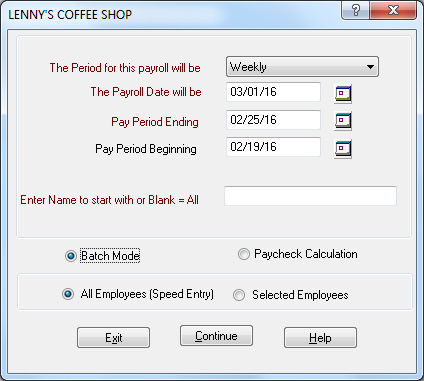
Important: Only employees assigned to the selected pay period will be processed.
Processing multiple pay periods:
If you have employees with different pay periods (for example, some semimonthly and some monthly):
- Process the (S)emimonthly, (W)eekly, or (B)iweekly employees first
- Return to Enter New Payroll and change the selection to (M)onthly
- Process the monthly employees
- After all pay periods are complete, review your totals and print checks
Step 2: Configure dates
The system displays default dates derived from your Scheduled Pay Dates report.
Payroll date
The date that will appear on the paychecks. Accept the default date or enter a new pay date.
Pay period ending
The last day of the pay period being processed. Accept the default date or change it as needed.
Pay period beginning
The first day of the pay period being processed. Accept the default date or change it as needed.
Step 3: Select employees
Option 1: All employees
To process all employees in the selected pay period:
- Leave the "Enter Name To Start With" field blank
- Check the All Employees box
- Click Continue
Employees will appear on screen in alphabetical order, ready to accept payroll data.
Option 2: Selected employees
To process specific employees only:
- Click Selected Employees
- Double-click each employee name you want to process
- Click Continue
Option 3: Start with a specific employee
To resume payroll entry from where you left off:
- Enter the first few letters of the employee's last name in "Enter Name To Start With"
- Check All Employees
- Click Continue
This is helpful if you need to stop halfway through payroll processing and resume later.
Payroll Entry Methods
ProPay offers two methods for entering payroll data:
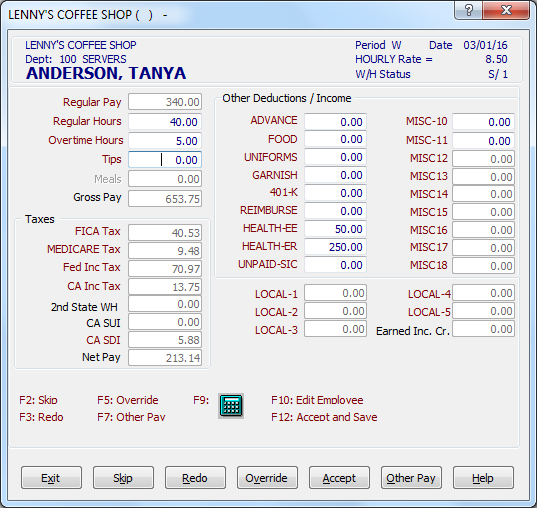
Method 1: Paycheck calculation
In this mode, each employee's paycheck is calculated and posted immediately before proceeding to the next employee.
When to use:
- Standard weekly payroll processing
- When you want immediate verification of each paycheck
- When processing fewer employees
Process:
- Employee appears on the payroll entry screen
- Enter payroll data (hours, salary, deductions, etc.)
- Click Accept to save and post the paycheck
- System automatically advances to the next employee
Method 2: Batch mode
In batch mode, you enter hours worked and/or salary amounts for all employees first, then post the entire batch.
When to use:
- Importing payroll from ProPay Web or ProClock (Time Clock)
- Processing large numbers of employees
- When you want to review all entries before posting
Process:
- Enter payroll data for all employees in the batch
- Review entries for accuracy
- Click Post Batch to calculate and save all paychecks
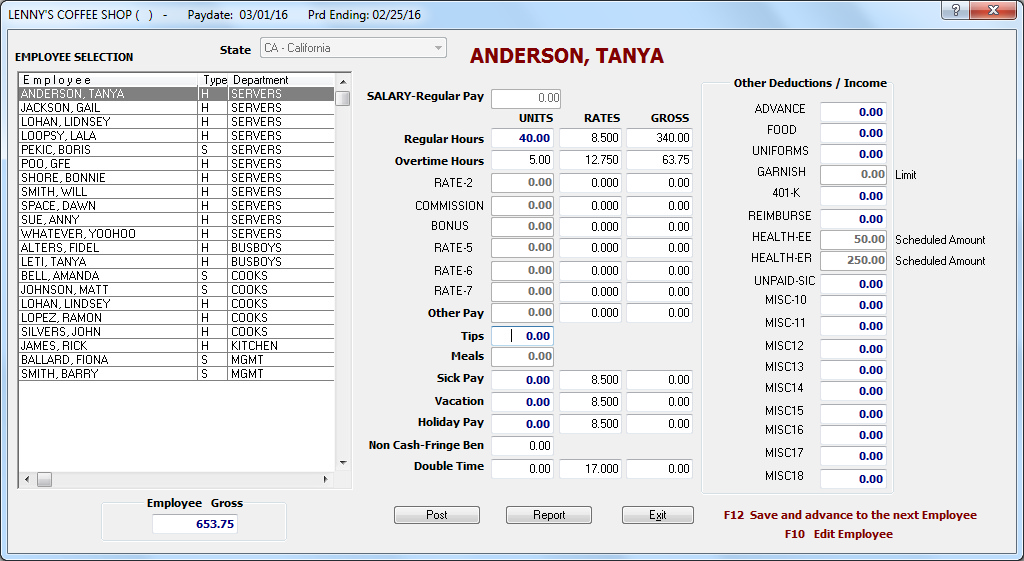
Note: Batch mode is automatically used when importing payroll files from ProPay Web and ProClock integrations.
Changing Pay Date on Existing Batch Files
If a batch file has been entered (manually or imported from ProPay Web or ProClock) with an incorrect pay date, you can change it:
- Go to Enter New Payroll
- Enter the desired (correct) pay date
- A message will appear: "A batch file exists with a different pay date. Do you want to change the existing batch file's date?"
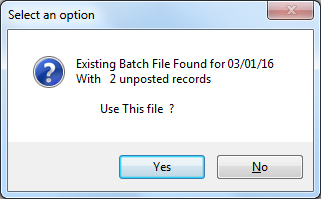
- Click Yes to update the pay date
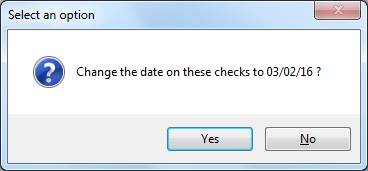
Example:
- Existing batch has pay date of 03/01/25
- You need to change it to 03/02/25
- Enter new payroll with 03/02/25 as the pay date
- Click Yes when prompted to change the batch file date
This feature is particularly useful when clients using ProPay Web or ProClock submit payrolls with incorrect pay dates.
Verifying Payroll Totals
After entering payroll, always verify your totals before printing checks:
- Click Display Payroll Totals when payroll entry is complete
- Review the hash totals displayed:
- Total regular hours
- Total overtime hours
- Total gross salaries
- Total withholdings
- Total deductions
- Total net pay
- Compare these totals with the client's source documents
- Investigate any discrepancies immediately
- Exit the payroll entry screen
- Return to Enter New Payroll
- Verify you selected the correct pay period (W, S, B, or M)
- Ensure employees are assigned to the selected pay period in Employee Setup
- Verify the employees are set to the correct pay period in Employee Setup
- Check that employees are marked as Active (not Terminated or Inactive)
- If using "Selected Employees," ensure you double-clicked the employee names to select them
- Review the Scheduled Pay Dates report for correct default dates
- Manually adjust the payroll date, pay period beginning, and pay period ending as needed
- Verify the pay period setup in Employer Setup is correct
- Review all entries in the batch for completeness
- Ensure no required fields are blank
- Verify all amounts are positive (or properly marked as negative if applicable)
- Check for duplicate entries
- Exit and re-enter the batch if problems persist
- Ensure you're entering the employee's last name, not first name
- Enter only the first 2-3 letters of the last name
- Verify the employee is active and assigned to the selected pay period
- Computing Paychecks
- Scheduled Pay Dates
- Batch Payroll Processing
- Importing ProPay Web Files
- ProClock Integration
- Display Payroll Totals
Important: This is your best opportunity to catch errors before printing checks. Ensure your totals match the client's totals to verify accuracy.
Troubleshooting
Incorrect pay period selection
Issue: Wrong employees appear for processing or no employees appear.
Solution:
Missing employees
Issue: Expected employees don't appear in the employee list.
Solution:
Date discrepancies
Issue: Pay dates don't match expected dates.
Solution:
Batch mode errors
Issue: Batch won't post or shows errors.
Solution:
Unable to start payroll for a specific employee
Issue: Cannot go to a specific employee using "Enter Name To Start With."
Solution: